
Download EaseUS Todo Backup – free backup, secure data protection
Overview – Why a reliable backup tool matters
In today’s digital age the most valuable asset on any computer isn’t the sleek design or the high‑resolution screen—it’s the data stored on the hard drive. Whether you’re a home user safeguarding family photos, a freelancer protecting client projects, or a small business maintaining critical databases, losing that information can be catastrophic. EaseUS Todo Backup offers a powerful, yet easy‑to‑use solution that lets you create full system images, partition backups, and file‑level copies with just a few clicks. The free edition covers the essential features most users need: automated scheduling, incremental backups, and a reliable restore process that can bring an entire system back to life after a virus attack, hardware failure, or accidental deletion.
What sets EaseUS Todo Backup apart from many competitors is its intuitive interface combined with advanced capabilities such as disk cloning and system migration. This means you can move to a larger SSD, upgrade to Windows 11, or duplicate a workstation without reinstalling the OS and applications. The software also includes a step‑by‑step wizard that guides even beginners through the backup creation process, while still offering enough depth for power users who want to fine‑tune backup parameters.
Security is another cornerstone of the tool. Backups can be encrypted with AES‑256, ensuring that even if the backup drive falls into the wrong hands, the data remains unreadable. Additionally, the program supports compression to save storage space and integrates with popular cloud services for off‑site storage, providing a comprehensive protection strategy that meets both personal and small‑business requirements.
Overall, EaseUS Todo Backup delivers a balance of simplicity, speed, and reliability that makes it a go‑to choice for anyone looking to protect their digital life without spending a fortune. Its free version is generous enough for everyday use, while paid upgrades unlock even more sophisticated features for enterprise environments.
Key Features – What you get with EaseUS Todo Backup
- Full System Backup: Capture the operating system, installed programs, settings, and all personal files in a single image.
- Partition & Disk Cloning: Move data to a new drive or SSD without reinstalling Windows.
- Incremental & Differential Backups: Save only changed data after the initial backup, reducing storage use and backup time.
- Scheduled Backups: Automate daily, weekly, or monthly backups to keep data continuously protected.
- AES‑256 Encryption & Compression: Secure and shrink backup files for faster transfers.
- Bootable Media Creation: Build a WinPE or Linux rescue disk to restore systems that won’t boot.
- Cloud Integration: Seamlessly sync backups to popular services like Google Drive, OneDrive, and Dropbox.
- File‑Level Recovery: Restore individual files or folders without restoring the entire image.
- Cross‑Platform Support: Works on Windows 7/8/10/11 and offers limited Mac utilities through companion apps.
- User‑Friendly Wizard: Step‑by‑step guidance reduces the learning curve for beginners.
Each of these features is designed to address common data‑loss scenarios, from hardware failures to ransomware attacks. The incremental backup engine, for example, ensures that after the first full backup only the modified sectors are saved, which dramatically cuts down on backup windows and storage consumption. Meanwhile, the bootable rescue media gives IT admins a reliable way to recover systems that cannot start Windows at all, providing peace of mind for mission‑critical environments.
The free edition includes all core functionalities needed for personal use, such as full system imaging, disk cloning, and scheduled backups. Upgrading to the paid “Home” or “Business” plans unlocks additional options like Outlook email backup, advanced cloning, and priority technical support. Whether you’re safeguarding a single laptop or managing multiple workstations, EaseUS Todo Backup scales to meet your needs while keeping the interface clean and approachable.
Installation, Usage & Compatibility – Getting started quickly
Downloading and installing EaseUS Todo Backup is straightforward. Visit the official EaseUS website, click the “Download Free Version” button, and save the installer (.exe) to your computer. Run the installer, accept the license agreement, and follow the on‑screen prompts. The setup process typically takes under five minutes and does not require any additional prerequisites, making it ideal for users who want a quick start.
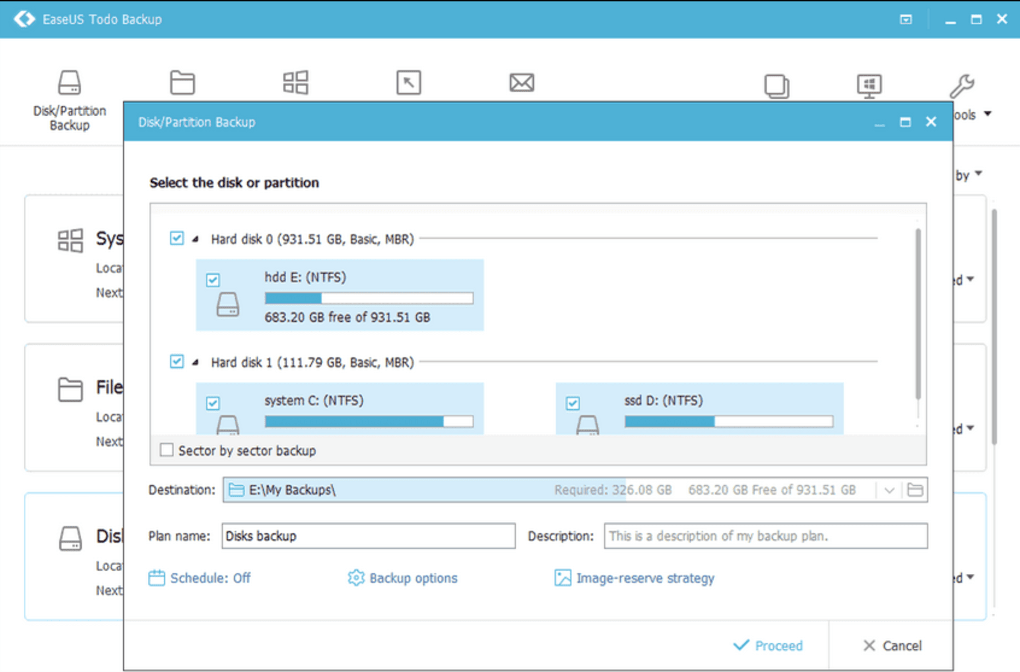
Once installed, launch the application. The main dashboard presents three primary tabs: Backup, Clone, and Tools. To create a full system backup, select the “Backup” tab, choose “System Backup,” and the wizard automatically detects the system drive. You can then pick a destination—an external USB drive, a secondary internal disk, or a network share. For added security, enable AES‑256 encryption and adjust compression levels as desired.
Scheduling is handled through the “Schedule” button within the backup wizard. Choose a frequency (daily, weekly, monthly) and set a specific time when the computer is likely idle. The software will run silently in the background, logging each operation in the “History” panel for easy review.
Compatibility is broad: the free version supports Windows 7, 8, 8.1, 10, and 11 (both 32‑bit and 64‑bit). While the core backup engine runs exclusively on Windows, EaseUS also offers a companion “Todo Backup for Mac” that provides similar disk cloning capabilities for macOS users, though the feature set is more limited compared to the Windows version.
During the backup process, you’ll notice a progress bar that displays estimated time remaining, transfer speed, and data volume. The program intelligently pauses if you start a resource‑intensive task (e.g., gaming or video editing) to avoid performance hits. Upon completion, a verification step ensures the integrity of the backup image, alerting you instantly if any corruption is detected.
Restoring data follows an equally simple workflow. From the “Backup” tab, click “Restore,” select the desired backup image, and choose either “Entire System” to revert the whole computer or “File/Folder” to retrieve specific items. If the original OS fails to boot, you can boot from the previously created WinPE rescue media and launch the restore interface directly, bypassing the need for a functional Windows environment.
Overall, the installation and day‑to‑day usage experience is designed to be frictionless, even for users with minimal technical knowledge. The combination of an intuitive UI, comprehensive scheduling options, and broad OS support makes EaseUS Todo Backup a reliable choice for both home and small‑business environments.
Pros & Cons
- Pros:
- Free version offers full system backup and disk cloning.
- Simple, wizard‑driven interface suitable for beginners.
- Incremental backups reduce storage needs and backup time.
- Bootable rescue media provides recovery even when Windows won’t start.
- AES‑256 encryption ensures data confidentiality.
- Broad Windows compatibility (7‑11, 32/64‑bit).
- Cons:
- Advanced features (e.g., Outlook backup, advanced cloning) require a paid upgrade.
- Mac version is limited compared to Windows counterpart.
- Cloud sync is restricted to third‑party services; no native cloud storage.
- Occasional UI lag on very large backup sets.
Frequently Asked Questions
Can I use EaseUS Todo Backup to back up a Mac?
EaseUS offers a separate “Todo Backup for Mac” product. While the Windows version cannot directly back up macOS, the Mac edition provides similar disk cloning and file backup capabilities, though some advanced features are only available in the Windows version.
Is the free version limited by the size of the backup?
No. The free edition does not impose a size limit on backup images. However, certain premium features such as Outlook email backup, advanced cloning, and priority support are reserved for paid licenses.
How do I create a bootable rescue disk?
From the main dashboard, select “Tools” → “Create WinPE Bootable Disk.” Follow the wizard to choose a USB drive or ISO file, then click “Create.” The resulting media can boot independently and launch the EaseUS restore environment.
Can I schedule backups to run while I’m at work?
Yes. The software includes a flexible scheduler that lets you set daily, weekly, or monthly backups at any time of day. You can also define “idle” conditions so the backup runs only when the PC is not actively being used.
Is my backup data encrypted by default?
Encryption is optional but highly recommended. You can enable AES‑256 encryption in the backup wizard; the key is stored locally and can be protected with a password you set.
Conclusion – Secure your data with EaseUS Todo Backup today
Data loss is an ever‑present risk, but with EaseUS Todo Backup you gain a dependable, user‑friendly safety net that works across a wide range of Windows environments. The free edition already packs essential capabilities—full system imaging, disk cloning, incremental backups, and encryption—making it an excellent choice for home users and small businesses alike. While premium tiers unlock additional tools for enterprise‑level protection, the core functionality delivers fast, secure, and reliable backups without the complexity of many competing products.
By investing a few minutes now to set up scheduled backups and create a bootable rescue disk, you can avoid the nightmare of lost files, corrupted systems, or costly reinstallations. The software’s intuitive interface, strong security features, and broad compatibility ensure that protecting your digital assets is both simple and effective.
Ready to safeguard your data? Download EaseUS Todo Backup for free, configure your first backup, and enjoy peace of mind knowing that your files are protected against any mishap.







